Saving query result from SSMS is not easy as it seems, some of my colleague copy from SSMS query result and paste it to Excel. Apparently it’s not a problem, but it can be a problem if your data saved in text data type column but containing numeric data.
If you paste this data directly to an Excel worksheet, this data will be automatically formatted as numeric data. For example if you store Serial Number data “00979127897912” it will be pasted as “979127897912” in Excel, and you lost your “00” prefix in your data.
Based on my experience, I found 2 solutions for this matter.
- Save result to comma delimited (csv) or tab delimited (txt) file
After your query executed successfully and display its result in grid, right click on grid and select Save Results As…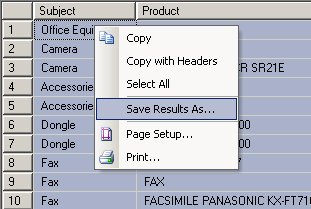
SSMS – Save Result As
A save dialog box will appear, specify your file name, format, and where do you want to save your file
- Copy and Paste data to Excel worksheet
First, select all result set, and right click on it and click Copy With Headers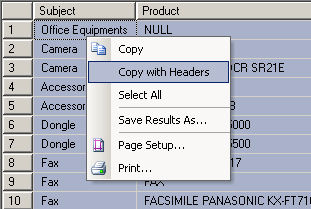
SSMS – Copy with Headers
Before pasting your data to Excel worksheet, you have to set column format on excel cells.
- Select All column by clicking on left top corner, right click there and select Format Cells
- Select Text on category field
- Click on OK

Excel – Format as Text
Finally, paste your data there
No comments yet.